

Work Environment

Overview

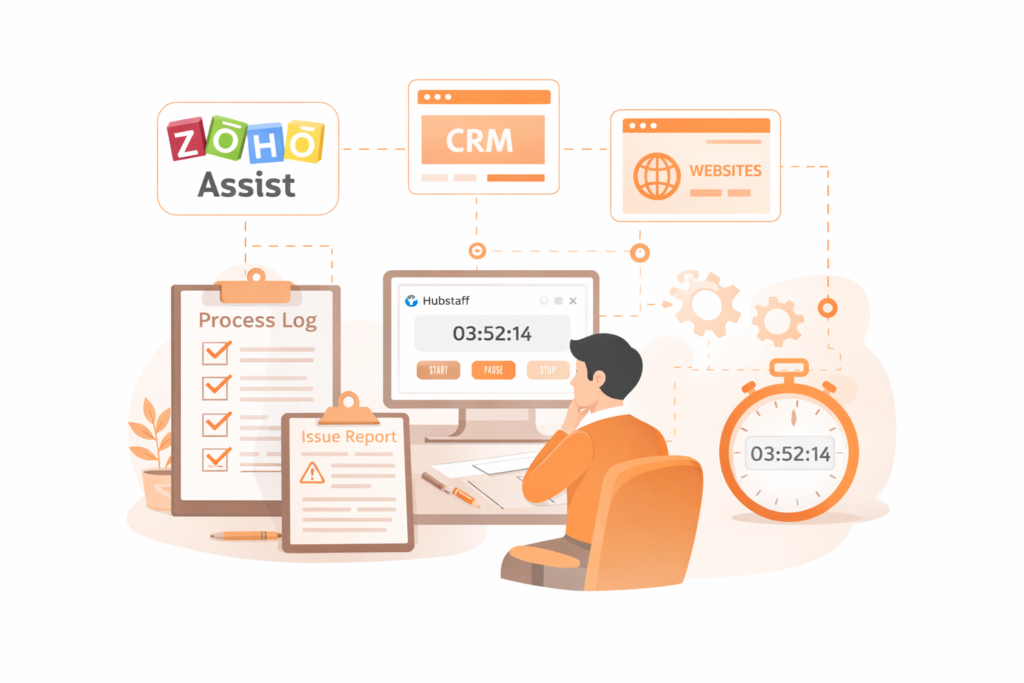
How the Work Environment Operates

Before starting the Micro-project, it is important to understand how the work environment is set up.

This page explains:
how you will access the Office PC
the platforms used to complete the micro-project
how Work Sessions are structured and carried out
how time is tracked during the micro-project
how to record progress using the Process Log and Issue Report

By reviewing this information, you will understand the Work Environment and how each Work Session is carried out in practice.

Office Pc

Working Through the Office Pc

All work is carried out through the Office PC located in our UK Office.
Instead of working directly from your own device, you will connect to the Office PC remotely.
The Office PC uses a multi-screen setup. Users with multiple screens may use this feature while completing tasks.

Working through the Office PC ensures that:
systems remain secure
files remain centralised
all users work within the same Work Environment
required accounts are already configured

You will not need to install or configure any software on your own computer.

Accessing the Work Environment

You will connect to the Office PC using Zoho Assist. More on this later on, on your journey with us.
Through this connection, you will be able to:
access the full Work Environment
access the documents needed
have access to online platforms required for the micro-project
You will be provided with the necessary login details to access the Office PC.

Time Tracking

All Work Sessions are tracked using Hubstaff. This is for internal use only. You are paid per the agreed time for the micro-project.
When beginning a Work Session, you are expected to:
• open Hubstaff
• select the correct project
• start the timer before beginning work on the office PC
This is a part of the job and it help up improve our process

Website Platforms and Tools

The websites used in this project are managed through:
• WordPress
• Elementor (when required)
These tools are used to:
• work with website templates
• update page layouts
• insert and structure content
• build and adjust website sections

CRM Platform

The platform used to store and manage submitted forms is Zoho CRM.
Your interaction with this platform mainly involves:
• Connecting website forms
• Checking if the required fields are populated
You are not expected to manage CRM processes beyond what is required for the workflow.
Typical Work Session

A typical Work Session consists of the time you start the Hubstaff timer to the time you stop it. All work must be done on or via the Office PC during this time. No work related to this micro-project must be done outside the Work Environment.

How to start the Work Session:
1. Log in to Zoho Assist
2. Connect to the Office PC named IT_PC
3. Log in to your desktop user account
4. Start Hubstaff to track time
5. Open the assigned process workflow document
6. Follow the steps in order
7. Complete the Process Log and Issue Report
8. Complete the assigned tasks
9. Update the required sign off documents within the Va-Build environment
10. Stop Hubstaff
11. Disconnect from the Office PC
12. Log out of Zoho Assist
13. Notify your supervisor once all work is completed

Ready to Start?

One Last Step !

If you have reviewed the information on this website and understand how the work is structured, you can proceed to the qualification assessment. This assessment is designed to confirm your understanding of the workflow, expectations, and reporting requirements. Only candidates who have carefully read the previous pages should continue. The assessment must be completed successfully before you can start the role.